
It happens more than people admit. A contact blocked during a difficult moment. A spam number added to the list months ago that turned out to be a legitimate business. An accidental tap on “Block this Caller” that you’re not even sure happened. Whatever the reason, the blocked contacts list on an iPhone is one of the most frequently needed settings that most users can never quite remember how to find.
Apple keeps blocked contacts accessible through three separate apps — Phone, Messages, and FaceTime — and every method leads to the same unified list. Here’s exactly how to reach it, what you’ll see, and how to make changes.
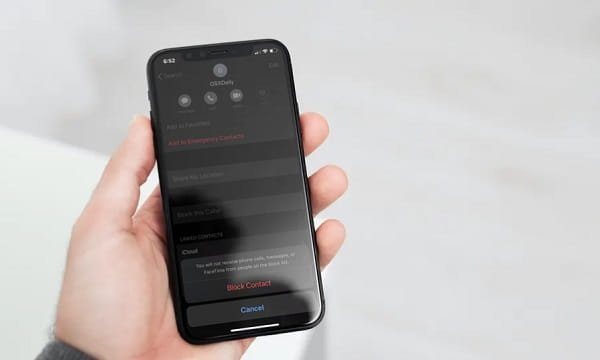
Method 1: Through Phone Settings
This is the most commonly used path and works on all iPhone models running iOS 16 through the current iOS 18.
Open the Settings app from your home screen. Scroll down and tap Phone. On some iPhones running newer iOS versions, you may need to tap Apps first, then select Phone from the app list.
Inside Phone settings, scroll down until you see Blocked Contacts and tap it. The complete list of every number and contact you’ve blocked from calling you appears here. If the contact’s number is saved in your Contacts app, their name shows alongside it. Unknown numbers that were blocked directly from your recent calls appear as bare number strings.
Method 2: Through Messages Settings
Blocked contacts in Messages follow the same list as Phone — it’s one unified block list across the iPhone, not separate lists per app. But some users find it easier to navigate here first.
Open Settings, scroll down to Messages (or tap Apps → Messages on newer iOS versions). Scroll to the bottom of the Messages settings page and tap Blocked Contacts. The same complete list appears.
Method 3: Through FaceTime Settings
The same path applies for FaceTime. Open Settings → FaceTime (or Apps → FaceTime), scroll to the bottom, and tap Blocked Contacts. You’ll see the identical list — because blocking a contact on iPhone blocks them across calls, messages, and FaceTime simultaneously. Blocking someone in one place blocks them everywhere.
What the Blocked Contacts List Shows
Each entry in the blocked list displays:
- The contact’s name (if saved in your Contacts)
- The phone number
- For email-based blocks — the email address blocked
Blocked contacts cannot call you, send you SMS or iMessage texts, or FaceTime you. Their calls go straight to voicemail without your phone ringing, though they can leave a voicemail that you can choose to listen to later. Their messages are delivered but you won’t receive notifications and the messages are stored in a separate filtered section.
One thing the list does not show is when the contact was blocked. Apple doesn’t log the date of the block action, which means if you’re trying to reconstruct when you blocked someone, the list itself won’t help — only your memory or call history will.
How to Unblock a Contact
From any of the three Blocked Contacts screens, swipe left on the contact you want to unblock. A red Unblock button appears — tap it. Alternatively, tap Edit in the top-right corner of the screen, tap the red minus icon next to the contact, and confirm the removal.
Once unblocked, the contact can immediately call, text, and FaceTime you again. There’s no delay or cooldown period.
How to Add a Contact to the Block List
From the same Blocked Contacts screen, tap Add New at the bottom of the list. Your Contacts list opens — select the person you want to block. They’re added instantly.
You can also block directly from a recent call. Open the Phone app, go to Recents, tap the information (i) icon next to any number, scroll down, and tap Block this Caller. This is the fastest route when dealing with an unknown number that just called.
Carrier-Level Blocking vs. iPhone Blocking
There’s an important distinction worth understanding. The blocked contacts list in your iPhone Settings is device-level blocking — it’s handled by your phone’s software. If you remove the SIM, restore the phone, or switch devices, this list doesn’t automatically transfer unless you back up and restore your iPhone from an iCloud or iTunes backup.
Carriers — Airtel, Jio, Vi, and others — offer their own separate blocking services at the network level. Numbers blocked through your carrier are blocked before the call even reaches your phone, and they work regardless of which device your SIM is in. Contact your carrier’s app or customer care to access and manage carrier-level blocks, which operate independently of your iPhone’s built-in block list.
FAQs
Q: Does blocking someone on iPhone notify them?
A: No. The blocked contact receives no notification of any kind. Their calls silently go to voicemail and their messages appear delivered on their end.
Q: If I block someone in Messages, are they also blocked in Phone and FaceTime?
A: Yes. iPhone uses a single unified block list. Blocking someone anywhere blocks them across all three — calls, messages, and FaceTime simultaneously.
Q: Can I see messages from blocked contacts?
A: Blocked messages are stored under a filtered section in Messages. Go to Messages, scroll to the top, and look for a Filtered Messages section to access them.
Q: Does my block list transfer to a new iPhone?
A: Yes, if you restore the new iPhone from an iCloud or iTunes backup. A fresh setup without restoration does not carry over the block list.
Q: Can a blocked contact still leave a voicemail?
A: Yes. Blocked callers can leave voicemails but they’re stored separately under a “Blocked Messages” section in your voicemail list and don’t trigger notifications.